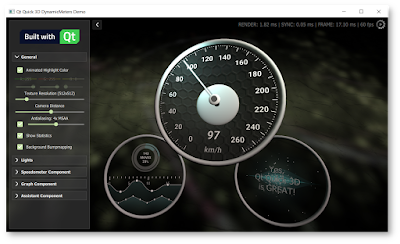
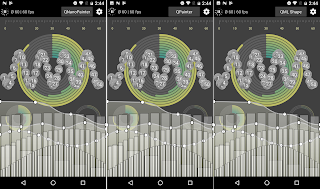
After the QUItIndicator trilogy which introduced idea, design and performance of a specific Qt5 QML component there's room for more, right?! Something like this:
This time we have a dynamic QML component for showing the remaining power of your mobile device battery. As a recap, with "Dynamic QML component" I mean someting which utilizes not only basic QML animation properties (position, opacity, scale etc.) but also new Qt5 features (shaders, particles, scenegraph powa!) to appear "more dynamic". Maybe it's just me, but I would love to see UIs really utilizing modern GPUs... and accelerating this progress is one of the reasons why I code these examples and blog about them. Another reason being to rule-the-world, obviously ;-P
Instead of explaining design & features of QUItBattery component I'll let this video to do that:
If you want to use this liquid battery component in your UI: Download the sources from here, copy QUItBatteryComponent directory, import it in your QML and off you go. Happy hacking!
Monday, May 13, 2013
Thursday, May 2, 2013
QUItIndicators: Performance considerations
(This is part III, please check also parts I and II)
Even with a small component like this, there are plenty of possibilities to improve (or sink) the performance. To make sure that our indicators perform as expected, we'll test them on Nokia N9 and and on Raspberry Pi.
These both devices are relatively low-end by current standards. N9 contains 1GHz Cortex-A8 CPU which is still quite beefy, but GPU (SGX530) on the other hand is getting old and unable to handle more complicated fragment shaders. For RPi these are just the opposite: CPU is slowish 700MHz ARM11 while the GPU (VideoCore IV) is more performant than N9 SGX530. Because of these qualities (and because both support Qt5, naturally) this duo is excellent for our performance ensurement.
So here's a short video showing how our indicators perform on Nokia N9 and on RaspberryPi:
Performs pretty OK on both, right? ProgressIndicator stress test isn't smooth on RPi, which indicates that its CPU can't handle 100 indicators animated like that. So stress test does what it's supposed to, normal use cases perform well.
Even with declarative QML language, good performance doesn't just happen, you need to work towards it. By looking at the sources of these indicators, at least these tips/notes can be made:
So with all this, does it mean that these indicator components are fully optimized? Well of course not! There are still some generalization left and room for improvements. Additinally, although we have tried to offload most of the work from CPU to GPU, indicator animations like these should be run in a separate thread instead of the GUI thread. Only this would allow smooth 60fps even when processing under heavy CPU load. For details, please read this blog post by Gunnar: http://blog.qt.digia.com/blog/2012/08/20/render-thread-animations-in-qt-quick-2-0/
Summing up briefly: When implementing QML components for applications, developers and designers should co-operate closely to bend the design to be as CPU&GPU friendly as possible while still making designers happy. Designers dig perfect pixels, but they also appreciate smooth 60fps. By making wise compromises and utilizing Qt5 correctly, we can deliver both.
Sources of QUItIndicator components & examples are available from: http://quitcoding.com/?page=work#indicators
Even with a small component like this, there are plenty of possibilities to improve (or sink) the performance. To make sure that our indicators perform as expected, we'll test them on Nokia N9 and and on Raspberry Pi.
These both devices are relatively low-end by current standards. N9 contains 1GHz Cortex-A8 CPU which is still quite beefy, but GPU (SGX530) on the other hand is getting old and unable to handle more complicated fragment shaders. For RPi these are just the opposite: CPU is slowish 700MHz ARM11 while the GPU (VideoCore IV) is more performant than N9 SGX530. Because of these qualities (and because both support Qt5, naturally) this duo is excellent for our performance ensurement.
So here's a short video showing how our indicators perform on Nokia N9 and on RaspberryPi:
Performs pretty OK on both, right? ProgressIndicator stress test isn't smooth on RPi, which indicates that its CPU can't handle 100 indicators animated like that. So stress test does what it's supposed to, normal use cases perform well.
Even with declarative QML language, good performance doesn't just happen, you need to work towards it. By looking at the sources of these indicators, at least these tips/notes can be made:
- BusyIndicator and ProgressIndicator are separate components instead of just one component with e.g. "indeterminate" property. This allows using a more light-weight (only one texture, animating only vertex shader, less properties etc.) BusyIndicator component with indeterminate use-cases. Lesson to learn is to avoid making too general/bloat QML components.
- There are four different sizes for indicators, from small (64x64px) to huge (512x512px). These sizes were selected because power-of-two texture sizes are more optimal for GPU. SourceSize property is used to scale and cache exactly the correct sized textures.
- BusyIndicator animation is achieved purely on vertex shader. As vertex shader is run once for every vertex instead of once for every fragment (pixel), it can be much more GPU-friendly. In case of an 256x256px indicator, our vertex shader is executed over 650(!) times less than fragment shader.
- To keep the amount of vertices as small as possible while making sure animation looks still smooth, the mesh size is allocated based on indicator size. GridMesh resolution for 256x256 indicator is 10x10 while 64x64 indicator manages with a 4x4 mesh.
- When using items&images as sources for ShaderEffect and not needing the original one, remember to set its visibility to false to prevent it from rendering.
- ProgressIndicator can show percentages in the center and applies vertex animation also for it, which requires that the whole Item is used as a source for ShaderEffect. Initialize of Item as a ShaderEffect source is slightly slower than initialize of Image. This is because Items (with their child Items) need to be rendered into FBO first while Image textures are instantly available. When percentages are disabled (showPercentages: false), Image is used directly and stress test of 162 ProgressIndicators starts pretty instantly. So if you need instantly appearing ProgressIndicators, don't show percentages on them.
- Minimize the amount of property changes. Property bindings in QML are so easy to make that without paying attention you may forget to disable those when not needed. As an example, ProgressIndicator percentages Text element visibility was set to false when disabled and it wasn't even used as part of the shader source. But because of an oversight, its text property was still updated whenever ProgressIndicator value changed. That's bad, fixed now to update text only when showPercentages is true. Qt Creator QML Profiler is the tool to use to analyze your code.
So with all this, does it mean that these indicator components are fully optimized? Well of course not! There are still some generalization left and room for improvements. Additinally, although we have tried to offload most of the work from CPU to GPU, indicator animations like these should be run in a separate thread instead of the GUI thread. Only this would allow smooth 60fps even when processing under heavy CPU load. For details, please read this blog post by Gunnar: http://blog.qt.digia.com/blog/2012/08/20/render-thread-animations-in-qt-quick-2-0/
Summing up briefly: When implementing QML components for applications, developers and designers should co-operate closely to bend the design to be as CPU&GPU friendly as possible while still making designers happy. Designers dig perfect pixels, but they also appreciate smooth 60fps. By making wise compromises and utilizing Qt5 correctly, we can deliver both.
Sources of QUItIndicator components & examples are available from: http://quitcoding.com/?page=work#indicators
Friday, April 19, 2013
QUItIndicators: Design considerations
(This is part II, for the introduction see part I)
The main points of this indicators exercise are to promote Qt5 QML+GLSL approach for building dynamic UI components (part I) and to give performance tips (part III, coming!). But here in the middle, we talk also a bit about design considerations behind these indicators. After all, who cares if your component performs well if it doesn't also look good and fulfil its functionality.
Here's set of design-related notes about QUItIndicators which we wanted to achieve:
These indicators are not highly original and will not win design awards. Graphics, effects and small details could be greatly refined. But we anyway tried to consider use-cases and apply them into the design. If you are eager to experiment yourself, grab the sources.
Next part will explain how to reach optimal performance to support these design considerations.
The main points of this indicators exercise are to promote Qt5 QML+GLSL approach for building dynamic UI components (part I) and to give performance tips (part III, coming!). But here in the middle, we talk also a bit about design considerations behind these indicators. After all, who cares if your component performs well if it doesn't also look good and fulfil its functionality.
Here's set of design-related notes about QUItIndicators which we wanted to achieve:
- The design language should be relatively neutral. Indicators like these may be used in many places, in applications and games, so they should not be too characteristic. And circles are pretty universal, so circles it is. The amount of circles in BusyIndicator is 11, by design. Reason behind this is that ProgressIndicator has one missing from top to mark start/end position, meaning 10 circles. This is optimal for percentages math e.g. when user sees 4 circles highlighted she can count that progress is at 40%. For smaller indicators, less & bigger circles might look better but decision was not to differentiate on these.
- Different use-cases call for different kind of indicators. When indicator is only visible briefly and progress can't be tracked, BusyIndicator is the one to use. Some events may take more time and then ProgressIndicator can be used to keep users better informed of how long they still need to wait. With longer taking tasks you could show percentages and make indicator even more dynamic to make it less boring for user to watch. Watching interesting animation makes 5 seconds to feel like 2... So from brief (left) to longer (right) waiting times, indicator to choose from our set would be:
- Indicators should fit and be clearly visible on top of any background. Users may wish to place them on white, black or colorful areas and expects indicator to fit there. To achieve this, our indicators use neutral black&white as their base colors and contain inverted version which works better on light backgrounds. It's also possible to define alternative highlight color when the default yellowish isn't suitable. Here are few examples of ProgressIndicators on top of different backgrounds:
- Show/hide animations are also important. Too often animated items like these appear and disappear suddenly, breaking the illusion of a fluid component. In our component showing/hiding animations are combination of opacity, scale and vertex position skewing. Strips below show what the animation looks like. This could be made smoother but for performance reasons we use only vertex shader with a minimal mesh size. Fastly animated it anyway looks better than these still images.
- Sometimes indicators like these should attract user attention. When the application is blocked until loading is ready, it's good that user eyes focus on the indicator. Darkening (and blurring, Qt5 graphical effects make that easy) the rest of the UI is a good way to achieve this. But sometimes just the opposite is desired, directing user focus to real content and keeping indicators relatively obscure. Example of this is our Picture Wall demo, users attention is on loaded images instead of the ones still loading. With our indicators this can be achieved by decreasing opacity. (Developer note: When making your own ShaderEffect which rewrites the default fragmentShader, remember to multiply gl_FragColor with qt_Opacity to keep QML opacity property behaving correctly!). Here's how Picture Wall demo fades indicators into background:
- Circular zooming animation doesn't progress linearly, but instead follows a custom bezier curve. This change in speed makes animation feel more lively and natural as it would be affected by slight gravity, gaining speed when moving down and slowing down while reaching the top. Designs are often filled with small details like this, final touches.
These indicators are not highly original and will not win design awards. Graphics, effects and small details could be greatly refined. But we anyway tried to consider use-cases and apply them into the design. If you are eager to experiment yourself, grab the sources.
Next part will explain how to reach optimal performance to support these design considerations.
Thursday, April 18, 2013
QUItIndicators: Introduction
Few months ago I wrote a normal mapping series with part I and part II. That was a good experience, so series it is again! This time about implementing dynamic QML components, with an example case being busy&progress indicators. We'll call these specific ones QUItIndicators.
Let's start with obligatory video which demonstrates these components, BusyIndicator and ProgressIndicator, with few examples:
Traditionally indicators like these would be implemented as an animated GIF or a sprite. Cons of that approach are zero customization and memory consumption: 2s animation of 256x256px 32-bit color indicator at 60fps would mean 2*60*256*256*4 = 31.5Mb memory consumption. That's quite a bit for just one indicator, so usually frames are animated slower than 60fps which makes animation less smooth.
Alternative way to implement animated indicator would be using imperative drawing API (QPainter, Cairo, Skia etc.). Drawing freely to a canvas gives a lot of possibilities, but can easily lead to non-optimal performance. Many of these APIs have OpenGL backends which sounds good in theory, but the reality is that they can't take full gains out of modern GPUs. Like wise Tro^H^H^HDigians have said, combining QPainter with OpenGL backend doesn't make a perfect harmony.
So as you probably guessed, our indicators use Qt5+QML+GLSL instead. The pros of this approach compared to sprites or imperative drawing are rendering performance, low memory consumption and customization possibilities. There is also at least one con: Indicator needs to be designed so that required animations can be achieved with vertex & fragment shaders.
Next blog post goes through design thoughts behind these indicators. In the meantime, you can get the sources from here and try yourself!
Let's start with obligatory video which demonstrates these components, BusyIndicator and ProgressIndicator, with few examples:
Traditionally indicators like these would be implemented as an animated GIF or a sprite. Cons of that approach are zero customization and memory consumption: 2s animation of 256x256px 32-bit color indicator at 60fps would mean 2*60*256*256*4 = 31.5Mb memory consumption. That's quite a bit for just one indicator, so usually frames are animated slower than 60fps which makes animation less smooth.
Alternative way to implement animated indicator would be using imperative drawing API (QPainter, Cairo, Skia etc.). Drawing freely to a canvas gives a lot of possibilities, but can easily lead to non-optimal performance. Many of these APIs have OpenGL backends which sounds good in theory, but the reality is that they can't take full gains out of modern GPUs. Like wise Tro^H^H^HDigians have said, combining QPainter with OpenGL backend doesn't make a perfect harmony.
So as you probably guessed, our indicators use Qt5+QML+GLSL instead. The pros of this approach compared to sprites or imperative drawing are rendering performance, low memory consumption and customization possibilities. There is also at least one con: Indicator needs to be designed so that required animations can be achieved with vertex & fragment shaders.
Next blog post goes through design thoughts behind these indicators. In the meantime, you can get the sources from here and try yourself!
Sunday, October 14, 2012
Qt5 and normal mapping - reloaded
(This is part II of the normal mapping journey, check the part I first for details.)
So you have all now played with Qt5 NMapper tool, right? Goody, that means we have gained experience of normal mapping and created some perfectly tuned normal mapped textures. Now it's time to use these in a separate application.
Let's assume that you are working on a 2D QML application, but would want 3D-looking effect into some part(s) of the UI. To visualize, here's an example NMapCarousel demo application:
(Qt5 NMap Carousel, running on PC and on Raspberry Pi)
Here normal mapping is used to make the carousel icons more dynamic by applying lighting. To increase the 3D impression, there are also extra shadows reflected behind the icons.
To implement something similar, here's how to proceed:
Source codes of this demo are available from here. I'm waiting to see cool normal mapping uses!
PS: To learn shaders from the master, check out Andrew's thndl.com!
So you have all now played with Qt5 NMapper tool, right? Goody, that means we have gained experience of normal mapping and created some perfectly tuned normal mapped textures. Now it's time to use these in a separate application.
Let's assume that you are working on a 2D QML application, but would want 3D-looking effect into some part(s) of the UI. To visualize, here's an example NMapCarousel demo application:
Here normal mapping is used to make the carousel icons more dynamic by applying lighting. To increase the 3D impression, there are also extra shadows reflected behind the icons.
To implement something similar, here's how to proceed:
- If not already, setup Qt5 to your PC/Mac/RPi or equivalent platform.
- Create normal maps of your graphic assets using Gimp, Blender, Photoshop etc. tool of your choice. Name the normal mapped image with extra "n" in the end, so images are something like "thing.png" and "thingn.png".
- Test your graphics with NMapper by copying these images into "images" folder and adding "thing" into imageFiles array property. Play with the light intensity, diffuse, switching x&y coordinates etc. If you are not happy with the results, jump back to step 2 to edit the images and iterate.
- Make your own application. Copy NMapEffect.qml and NMapLightSource.qml from NMapper, use your freshly made images, the lighting settings you tested earlier and implement rest of the UI.
- Profit! (Sorry that this took a bit more steps than normally... but on the positive side there is no unknown ???-step in the middle!)
Source codes of this demo are available from here. I'm waiting to see cool normal mapping uses!
PS: To learn shaders from the master, check out Andrew's thndl.com!
Friday, October 12, 2012
Qt5 and normal mapping
This one has been on my "blog at some point" back burner for some time now...
'Normal mapping' is a graphics rendering technique used for faking the lighting conditions. In 3D software it is often used for bringing small bumps and dents of textures visible to achieve more realistic graphical appearance without using huge amount of polygons. Normal mapping is kinda advanced version of preceding 'Bump mapping' technique. Where bump mapping uses just one channel for 'bumps', normal mapping uses 3-channel (RGB) bitmaps and can therefore contain more detailed normal vector information.
Normal mapping technique can also be used in 2D applications to get 3D'ish looking UI elements, which means it can be used also in normal non-Qt3D QML applications. Combining image textures with specifically made normal map textures using a suitable shader is all you need. And normal maps can be automatically created with Gimp, Blender, Photoshop etc. drawing tools, although for best results some tweaking may be required.
But enough about theoretical mumbling, here comes visuals:
(Qt5 NMapper tool, running on PC and on Raspberry Pi)
To experiment with normal mapping I implemented a simple Qt5 NMapper application. As seen from video, it can be used to play with different graphical assets, change lighting conditions, switch normal map x&y-coordinates etc. It also includes the essential 'cave mode' for wiggly fire light.. ;-)
Download NMapper application from here and try it on PC/Mac/RPi or equivalent platform with Qt5.
After this brief intro I'll make a follow-up post within few days about example usage. Have a hacking weekend everyone!
'Normal mapping' is a graphics rendering technique used for faking the lighting conditions. In 3D software it is often used for bringing small bumps and dents of textures visible to achieve more realistic graphical appearance without using huge amount of polygons. Normal mapping is kinda advanced version of preceding 'Bump mapping' technique. Where bump mapping uses just one channel for 'bumps', normal mapping uses 3-channel (RGB) bitmaps and can therefore contain more detailed normal vector information.
Normal mapping technique can also be used in 2D applications to get 3D'ish looking UI elements, which means it can be used also in normal non-Qt3D QML applications. Combining image textures with specifically made normal map textures using a suitable shader is all you need. And normal maps can be automatically created with Gimp, Blender, Photoshop etc. drawing tools, although for best results some tweaking may be required.
But enough about theoretical mumbling, here comes visuals:
To experiment with normal mapping I implemented a simple Qt5 NMapper application. As seen from video, it can be used to play with different graphical assets, change lighting conditions, switch normal map x&y-coordinates etc. It also includes the essential 'cave mode' for wiggly fire light.. ;-)
Download NMapper application from here and try it on PC/Mac/RPi or equivalent platform with Qt5.
After this brief intro I'll make a follow-up post within few days about example usage. Have a hacking weekend everyone!
Friday, September 21, 2012
Qt5 & Raspberry Pi
I received a Raspberry Pi this week (thanks Nokia & QtonPi!) and naturally baked Qt5 into it as the first thing. Started by just installing premade RPi Qt5 package, but as qmlscene is not yet included, went for building Qt5 following loosely these instructions. About 2 hours later, I had system setup with latest Raspbian image running Qt5 QML apps.
Last month when Qt5 first beta was coming together I prepared this "Qt5 Cinematic Experience" technology demo and got some good feedback. Samuel Rødal (btw check out his awesome "Qt 5 based 3D Wayland compositor" video!) kindly tested that it works also in RPi. Yes, it worked and was pretty fast also, but not even close to perfect... Now armed with RPi I wanted to spend some quality time with it, experimenting what the GPU (Broadcom VideoCore IV) likes and hates. So here comes "Qt5 Cinematic Experience - Raspberry Pi Edition":
The changes made for this RPi version are:
Last month when Qt5 first beta was coming together I prepared this "Qt5 Cinematic Experience" technology demo and got some good feedback. Samuel Rødal (btw check out his awesome "Qt 5 based 3D Wayland compositor" video!) kindly tested that it works also in RPi. Yes, it worked and was pretty fast also, but not even close to perfect... Now armed with RPi I wanted to spend some quality time with it, experimenting what the GPU (Broadcom VideoCore IV) likes and hates. So here comes "Qt5 Cinematic Experience - Raspberry Pi Edition":
The changes made for this RPi version are:
- Original version was quite scalable, but it was optimized for ~N9 screen resolutions. I wanted to run RPi in full HD 1080p (1920x1080) so adjusted things to fit better for the larger screen, making everything bigger and better. Though more pixels means more work for CPU&GPU so..
- Added FPS item in the top-left corner which shows how frequently QML animation loop gets called. Seeing this all the time while developing gives good feedback on how different changes affect the performance and also adds some demonstration sugar.
- Reduced smoke particles amount & size as that was a clear bottleneck.
- Another slowdown was DropShadow effect for big movie title texts, switched it now to plain Text.Outline style.
- On the other hand, increased shooting star sprite and its particles sizes as these changes didn't notably decrease the performance.
- On the RPi side used 128/128 CPU/GPU memory split and to get even more juices out, overclocked it to "medium" 700MHz -> 900MHz (see instructions)
- Went for a more colorful theme by default, raspberries are bright!
Subscribe to:
Posts (Atom)